Actors
Actors control everything you see or hear in the game from the units model to the impact sound of an ability.
Actor logic is event based which means the actor itself can declare when its created. This is different from game logic (Units, Abilities, Effects, etc.) which are forward declared, e.g. an ability states which effect to execute on use. In that sense actor logic is reversed and unintuitive when first starting out.
Actors do not affect gameplay as they are calculated asynchronously on the player’s local machine and are not synchronized across the network. This means the state of actors cannot be compared reliably, as some actors may only be created on certain graphic settings.
In addition to the obvious Model and Sound actors, there are various other types of actors that control subsystems (e.g., Site Operations or Event Macros) or link other actors together (e.g., Action or Region actors).
You can find the actors section of the Editor by moving to the Data Editor and navigating to + ▶︎ Edit Actor Data ▶︎ Actors, as shown below.
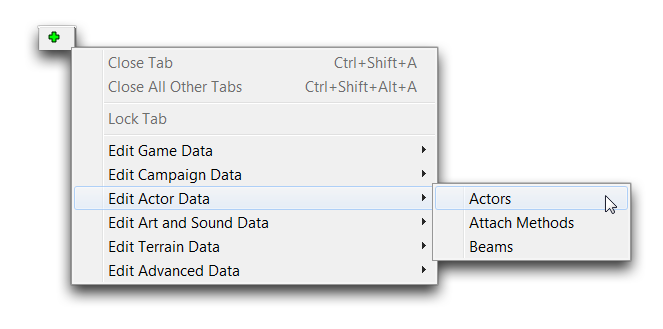 Navigating to Actors in Data
This will bring you to the actors tab of the Data Editor, presenting you with the following view.
 Actors Tab View
The fields in actors are described in the following section.
Actor Details
Owing to the many types available for actors, a single treatment of every actor property would be too unwieldy to be useful. However, actors have a large list of common properties, which are broken down in the table below.
| Field | Details |
|---|---|
| Aliases | Alternate reference names for actors. These offer a shortcut, making it easy for actors to send messages to one another. For example, unit actors have a common _Unit alias. When a separate actor wants to access the unit actor, it may use this alias. This is preferable to looking up the actual actor name, which will differ each time. |
| Copy Source | Sets another actor as a proxy parent. This means that any child actors of the current actor will acquire their properties from the Copy Source actor. The properties to be acquired must be set in the Copy Source actor’s Accepted Property Transfers field and the child actor’s Inherited Properties field. |
| Filter | Sets the visibility of the actor to Ally, Enemy, Neutral, or Self groups of the actor’s owner. |
| Filter Player | Sets the visibility of the actor on a player basis. |
| Flags | Flags contains a number of additional options for the actor. |
| Add to External Finder | Moves the actor to a global scope, making it usable by all other actors in the game. |
| Not Saved | Marks the actor to not save or load during a game save, reducing the time of these operations. |
| Response to Unit Player | Sets the actor to automatically update its player ID when its unit actor changes owner. |
| Suppress Creation Errors | Turns off the actor’s creation error message. This is useful if an actor is designed to fail its creation event under certain circumstances. |
| Fog Visibility | Sets the actor’s appearance under fog of war. The behavior options are as follows: Dimmed appears darkened, Hidden hides the actor completely, Snapshot will show the actor’s last visible state before leaving vision, and Visible makes the actor remain visible under fog. |
| Sharing | Sets the behavior for sharing the actor if it is requested by multiple functions. The options are: Always shared, Never shared, and Per Effect. Per Effect allows the you to configure sharing on an effect basis. |
| Events | Allows the setting of actor events and messages, which are the internal logic language for actors. |
| Macros | Can add event macros here. Event macros are a collection of common Events that are reusable in many actors. |
| Remove | Specify the removal of unwanted Events inherited from the parent actor. |
| Terms | Sets conditions that must be passed for the actor to be created. Identical to the term of the creation event within Events and will overwrite that message if entered here. This has an application in data organization. |
| Host Supporter | Host Supporter is used to specify a supporter actor. When the supporter dies a SupporterDesctruction message is sent to the actor which hosted it. This is often used to destroy that hosting actor, but can also be used to play animations or propagate messages. |
| Accepted Property Transfers | Determines which of a set of properties will be passed on to child actors. Controlled via a set of flags. Some of the numerous options here include Model Scale, Opacity, Scale, Team Color, Visibility, and Decal. There are even more transfer properties within the continuation field, Accepted Transfers. Options within Accepted Transfers include Animation Properties, Fog of War Color, Position, Rotation, and Textures. |
| Inherit Type | Sets if the actor inherits its properties from its host on creation via Once, never via None, or in a dynamically updating fashion via Continuous. |
| Inherited Properties | Determines the set of properties this actor inherits from its parent actor. For a property to be inherited correctly, it must be selected in both the Inherited Properties and Accepted Property Transfers fields. |
Actor Events
Actor Events is a communication system for actors. It allows for actors to speak to one another, creating context sensitive changes that can affect any aspect of the game. This system is composed of three basic elements, which are described below.
 Events - A specific development that can occur within the game.
 Terms - A confirmable set of properties of the game state.
 Messages - Commands that can be communicated to elements of the game.
These elements work together in a sequence, creating an actor event. The sequence unfolds as follows. Setting an actor’s events makes the actor watch for a specific Event to occur. If it does, then the Terms are checked. If they are found to be true, the Messages are sent out to their targeted game elements.
You may already have noticed that this is similar the Editor’s other main communication system, triggers. The events, terms, and messages of the actor events system are parallel to the events, conditions, and actions of the trigger system. While the trigger system can apply to many gameplay elements, the actor events system deals primarily with data. Triggers are usually the option for specific instances of units, objects, and occurrences in a map. Actor events work for the general type of an object. Actor events design a unit and its interactions, while triggers can adjust and alter that unit during gameplay.
You can find the actor events system by navigating to the ‘Events’ field of any actor type. A view of a typical events field is shown below.
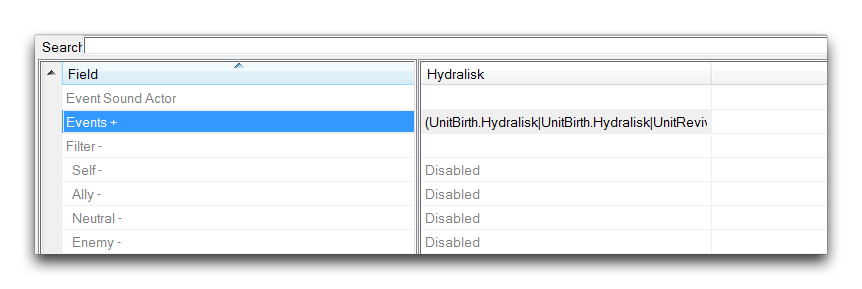 Actor Events Field
Double clicking this field will launch the actor events subeditor.
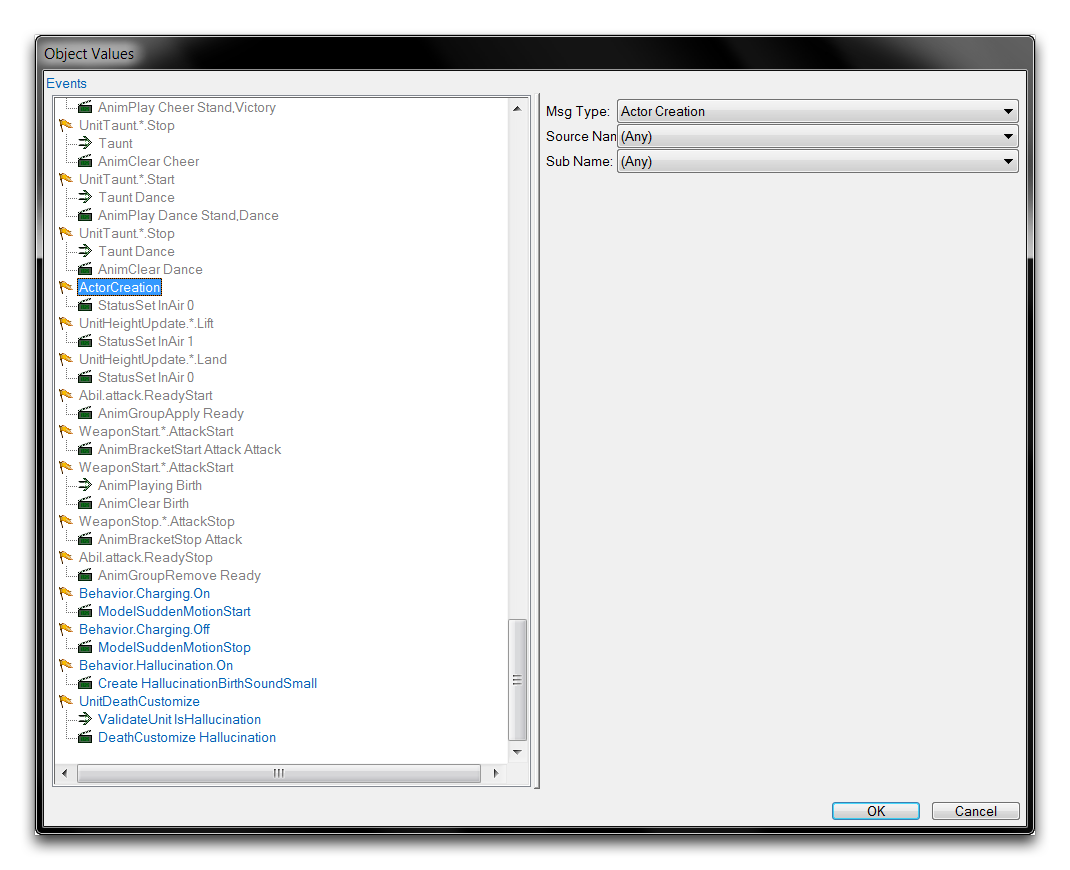 Actor Events Subeditor
This subeditor presents an organized view of the events, terms, and messages in an actor’s ‘Events’ field. You should note that the elements are colorized by their data source. Gray elements indicate inheritance from the game’s core data, Blue elements are from a Blizzard dependency, and green elements are from the current project.
Actor Event Use
You can set actor events by highlighting an element in the subeditor view, then selecting its type via the rightmost panel’s ‘Msg Type’ or ‘Term Type’ dropdowns. Note that both events and messages are referred to using the term ‘message.’ This is because they’re interchangeable, messages can be used as event triggers and vice versa.
Additional options, such as parameters or sources, typically control what the messages are communicating to. Any messages without a target will be sent by the actor to itself. Messages can also be targeted more granularly through the use of aliases. Although actors can be referred to by their direct name such as Marine, they usually have a type alias like _Unit, and a system reference like ::Creator.
Actor events are incredibly versatile. They can perform the fundamental handling of actors within data, such as creating them, destroying them, and linking them. However, actor events have many more nuanced functions, like playing animations, altering the physical properties of art and sound assets, applying physics, and controlling lighting. As an example of actor events’ capabilities, note the following.
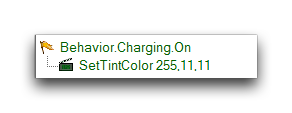 Sample Actor Event
Here, an event has been set to respond to a zealot’s charging behavior. In response to the charge starting, the zealot will send out a message to its own unit actor, resulting in its model being tinted to a reddish color. On testing, the gameplay results appeared as shown below.
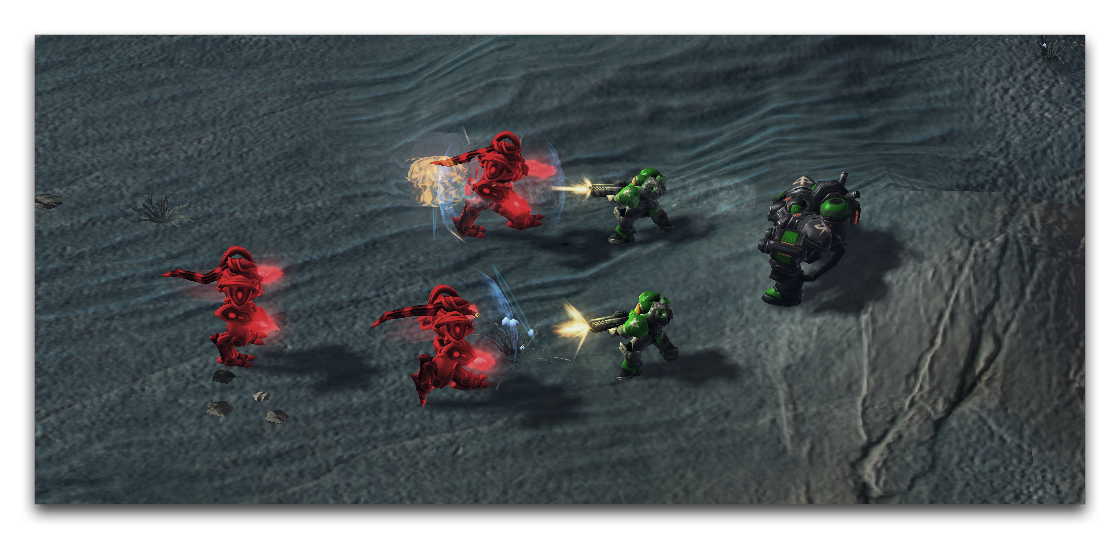 Zealots Tinting an Angry Red during Charge
Actor Events & Triggers
As mentioned earlier, there are many parallels between the actor events and trigger systems despite their dealing with different segments of the game. While it can be useful to keep the two separate in your thinking, the fact is that the two systems frequently communicate with one another, overlap in functionality, and can be used to accomplish the same things in several different ways.
An important example of this is that actor messages can be sent to specific actors using the Trigger Editor’s ‘Send Actor Message’ action. You can see this in action below.
 ‘Send Actor Message’ Actions
Above, an action statement in the body of a trigger has sent out a ‘Set Tint Color’ message to a hydralisk’s unit actor. The unit actor has also received a message to change its team color. Together, these messages have dyed the unit’s model a blue color, by speaking directly to its actors from triggers.
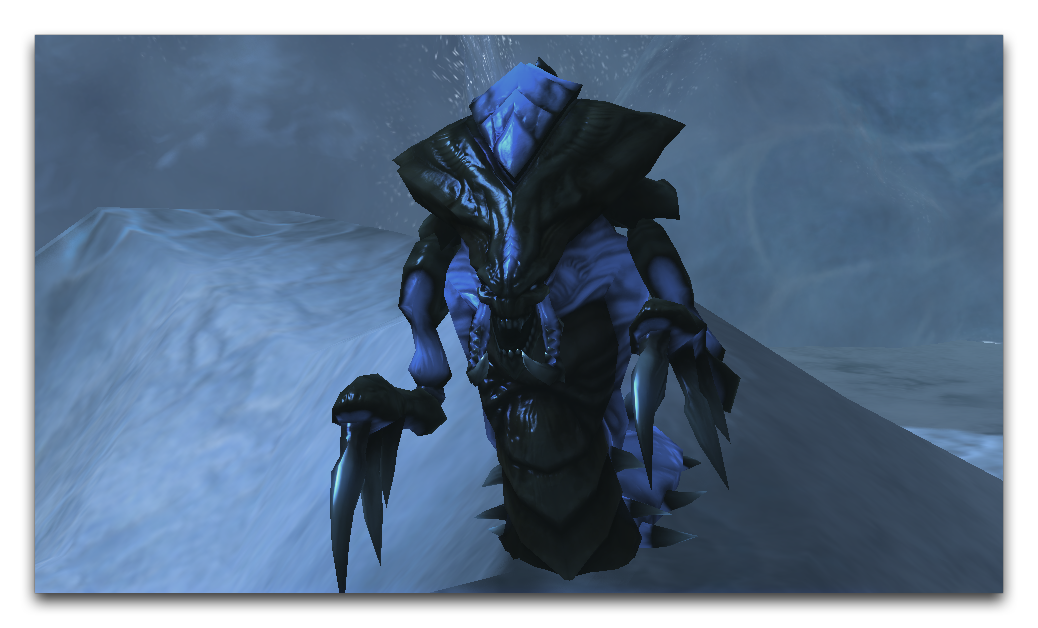 Colorized Hydralisk
Actor Parents
Data parents exist for all types of data, but for actors in particular blizzard did a lot of work to create useful parents that can speedup your work creating actors as well as reduce the complexity when you just learn about actors.
A parent is a template which if used the child object will inherit all its base settings. You can overwrite the base settings, if you need to change something. For some actor types a good parent is already chosen by default in the editor, like the GenericUnitStandard parent for Unit actors.
Parents can define Tokens which a child object can fill out to automatically set part of its data. You can think of them as parameters to a function.
Here is a list of very useful parents which you should consider using when creating actors.
| Actor Type | Name | Details |
|---|---|---|
| Unit | GenericUnitStandard | This is the default parent used for Unit actors, so you dont have to think about it too much. If you want to learn about actor events you can look inside the units actor events and see how many events are necessary to have a basic unit function as you expect it. |
| Action | GenericAttack | This is the default parent used Action actors. It comes with 3 effect tokens Attack, Launch and Impact. For beam or immediate attacks (like Marine) set Attack to the damage effect and for missile attacks set Launch to the launch missile effect and Impact to the impact effect of said launch missile effect. Do not set all 3 tokens. |
| Model | ModelAddition | Use this if you want to attach a model to another actor, e.g. a model when a unit has a buff active. |
| Model | ModelAnimationStyleContinuous | For non attached models where you control when the actor is destroyed, e.g. Psi Storms area. |
| Model | ModelAnimationStyleOneShot | For one shot models like explosions which you want to automatically cleanup once the animation is done. For attacks its better to use the built in launch and impact models from Action actors. |
| ModelMaterial | BehaviorGlaze | If you want to apply a glaze to a unit while a behavior is active. You only need to set the buff token and the Model. |
| Beam | Beam Simple Animation Style Continuous | This is the default parent for Beam (Simple) actors. Used for beams where you control the destruction of the actor. |
| Beam | Beam Simple Animation Style One Shot | Use this parent if you only want a beam which plays its animation once and then destroys itself. |
| Range | Range Abil | This allows an easy setup if you want to show the ability range while an ability is in targeting mode. You only need to set the Ability token for it to work. It will automatically read the abilities casting range. |
| Range | Range Behavior | Activates while a behavior is on a unit. You have to manually set the range. |
| Range | Range Weapon | Same as Range Abil for a weapon. |
| Splat | Cursor Splat | Creates a splat at the cursors position, mostly used for showing the impact area of an AOE ability like Psi Storm. You only need to set the abil token and the Model. |
| Sound | SoundOneShot | Plays the sound once and then destroys itself. |
| Sound | SoundContinuous | Plays the sound continuously until the actor is destroyed which you can control. |
Some parents are partially broken when using the data module due to how it fills certain values. This includes Range Abil, Range Behavior, Range Weapon and Cursor Splat. When you want to use them, after creating the actor and setting the token, right click on the Events field and select Reset To Parent Value and there select the parents name from the list. Alternatively you can open XML-View and delete the generated lines that start with <On for the newly created actor.
You can create your own parents as well. It is not recommended for beginners but once you have a better understanding of data it can help speedup creation of new data and makes it less error prone.